


Talyven
Minutes
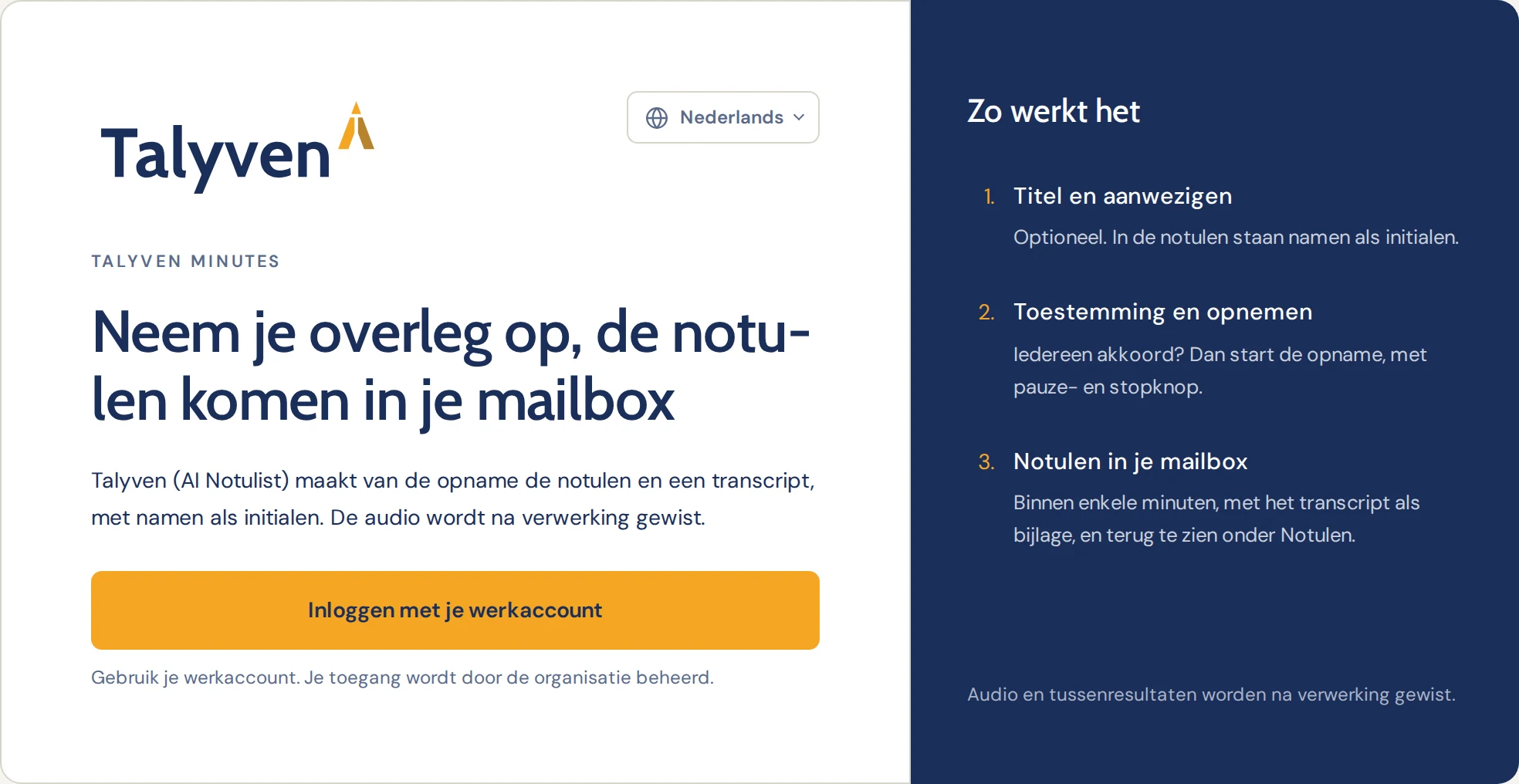
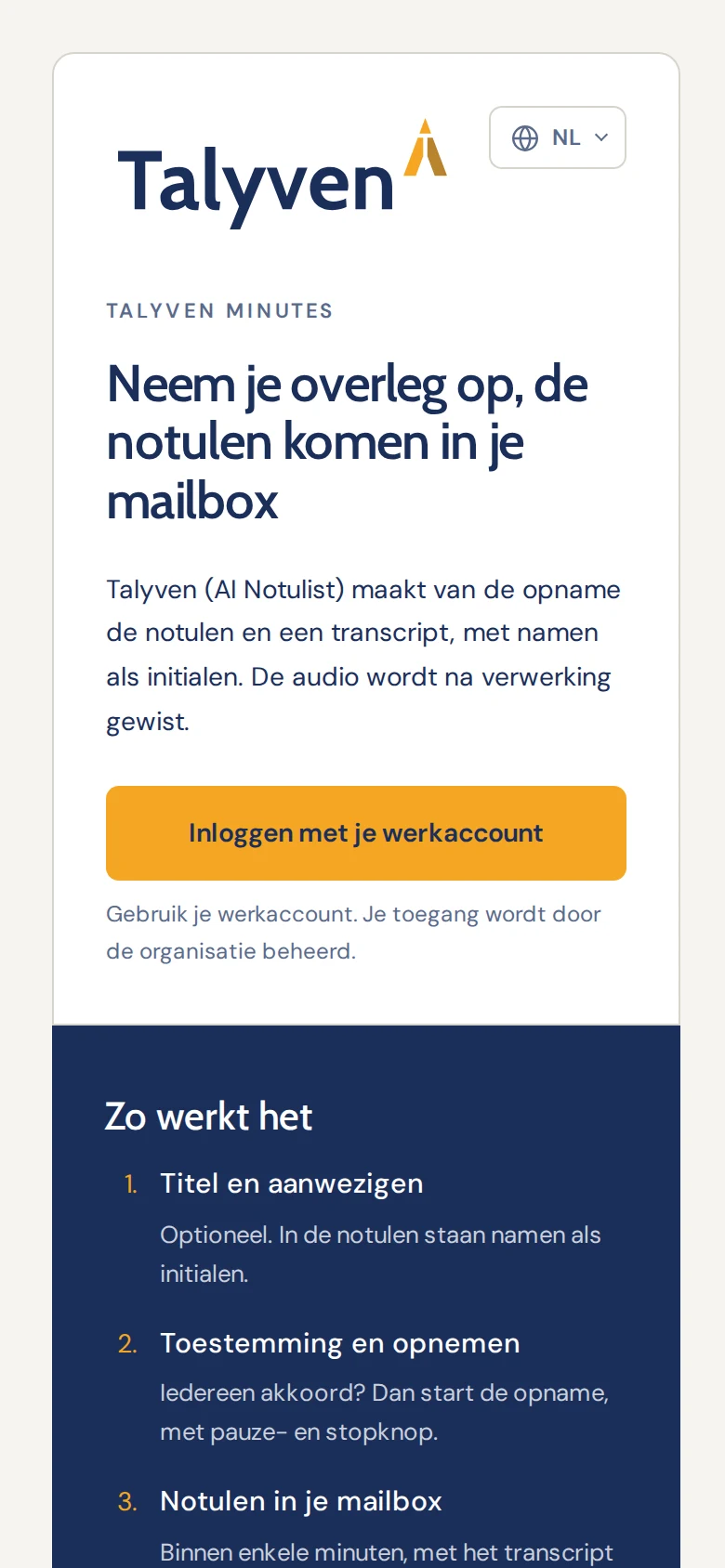
Record your meeting, the minutes arrive in your inbox
Minutes turns the recording into minutes and a transcript, with names as initials. The audio is deleted after processing.
You sign in with your work account. Your organisation manages who has access.
How it works
From meeting to minutes in three steps
- 01
Title and attendees
Give the meeting a title and add the attendees if you like. Names appear as initials in the minutes.
- 02
Consent and recording
Is everyone on board? Then the recording starts. With the pause and stop buttons, you stay in control.
- 03
Minutes in your inbox
Within minutes, with the transcript attached. You can also find them in the app, under Minutes.

Privacy in Minutes
What happens to your recording
On top of that, the commitments behind every Talyven product apply. Read the commitments
Consent first
The recording only starts once everyone agrees.
Names as initials
Attendees appear in the minutes by their initials.
Audio deleted after processing
The audio and intermediate results are deleted after processing.
Access through your organisation
You sign in with your work account. Your organisation decides who uses Minutes.
Questions
Good to know
How does my organisation get access?
Your organisation manages who uses Minutes. Want to use Minutes in your organisation? Email us at hello@talyven.com and we will set up access together with your administrator.
Where can I find earlier minutes?
In your inbox, and in the app under Minutes.
What happens to the audio?
The audio and intermediate results are deleted after processing. You receive the minutes and the transcript by email.
Which languages does the app support?
The app itself is available in the 24 official languages of the EU.
For administrators
Minutes in the Microsoft 365 app launcher
As an administrator, you can add Minutes to the Microsoft 365 app launcher with a custom tile. Employees then find the app next to their other apps.
Open the tile settings
In the Microsoft 365 admin center, go to Settings › Org Settings › Organization profile › Custom tiles for Apps.
Add the tile
Add a custom tile, copy the details from this page and save.
Visible within 24 hours
The tile appears in the app launcher on the All tab. Employees sign in with their work account.
Custom tiles require an Exchange Online mailbox for each employee. Does your organisation not have access to Minutes yet? Email us at hello@talyven.com.
Microsoft's guide (opens in a new tab)
Details for the tile
- Tile name
Talyven Minutes- URL of website
https://minutes.talyven.com- Image URL (60 × 60 pixels)
https://talyven.com/assets/apps/minutes-tile-60.png- Description
Record your meeting, the minutes arrive in your inbox.
Ready for your next meeting?
Open Minutes and sign in with your work account.